
 Garticverse · Extension guide
Your game.
Your drawings.
Make them yours.
Save the drawings worth keeping. Share a whole album. Style the game for your stream. This is your guide to every part of Garticverse.
The store has an older Garticverse release. Try the beta for everything below, including the new settings page and look editor. Beta setup →
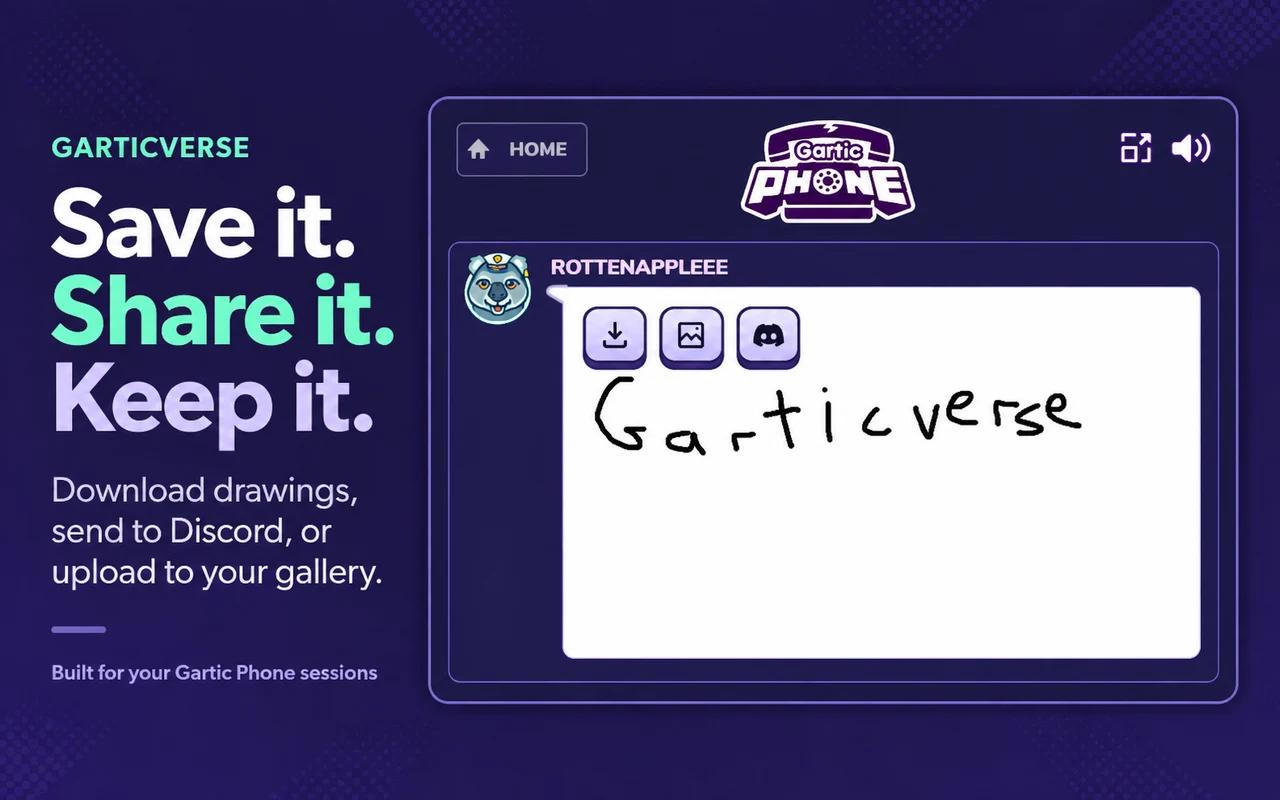
Start with what you want to do.
You do not need to set up everything. Install once, then choose the features you want. Garticverse runs on Gartic Phone; your settings stay in this browser profile.
Keep your drawings
Save a single PNG or download the drawings from an album.
No account setup →Share with your community
Send to Discord, or connect your own Garticverse gallery.
Choose your destinations →Build your stream look
Change the game's appearance and keep Twitch chat beside it.
No gallery key needed →| Feature | What you need |
|---|---|
| Downloads & skins | Just the installed extension and Gartic Phone. |
| Discord sharing | A webhook URL for the Discord channel you want to post in. |
| Gallery uploads | Your own Garticverse gallery, enabled extension uploads and an upload key. |
| Twitch chat | A Twitch channel login, or a styled chat widget URL. |
A few clicks, then you’re in.
Install from the Chrome Web Store
- Open the Chrome Web Store listing in desktop Chrome.
- Choose Add to Chrome and confirm Add extension. You do not need to unzip files or enable Developer mode for the store version.
- Open Chrome's Extensions menu and pin the extension if you want quick access. Open or refresh Gartic Phone.
Try the beta instead
The beta is a manual install for testing the latest features before they reach the store version.
Download beta v2.0.0- Extract the beta ZIP into a permanent folder on your computer.
- Type
chrome://extensionsinto Chrome's address bar. If the store version is installed, disable it while testing so two copies do not run together. Turn on Developer mode. - Choose Load unpacked. Select the extracted garticverse-extension folder that directly contains
manifest.json. - Check that Garticverse is enabled, then refresh Gartic Phone. Pin it from Chrome's Extensions menu, click it and choose All settings to set up your destinations.
Keep the extracted folder: Chrome loads the beta from it. The beta is a separate installation, so set up its connections and preferences again. To return to the store version, disable the beta, re-enable the store extension and refresh the game.
Chrome's unpacked-extension walkthrough shows the beta installation steps.
Know where everything lives.
| Where | What it does |
|---|---|
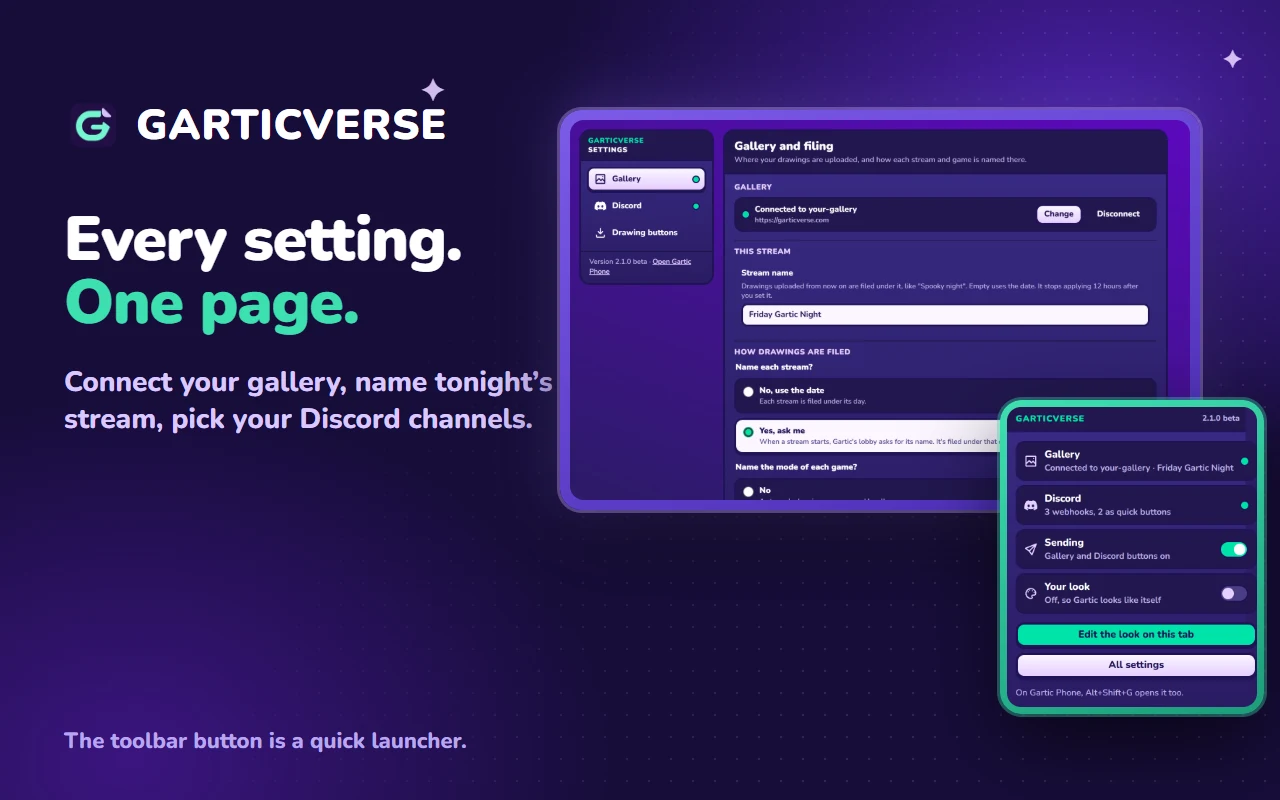
| Chrome toolbar button | A small launcher: whether your gallery and Discord are connected, a switch for your look, Edit the look on this tab, and All settings. |
| All settings | One page with three sections: Gallery, Discord and Drawing buttons. It is also Garticverse’s Extension options in Chrome. |
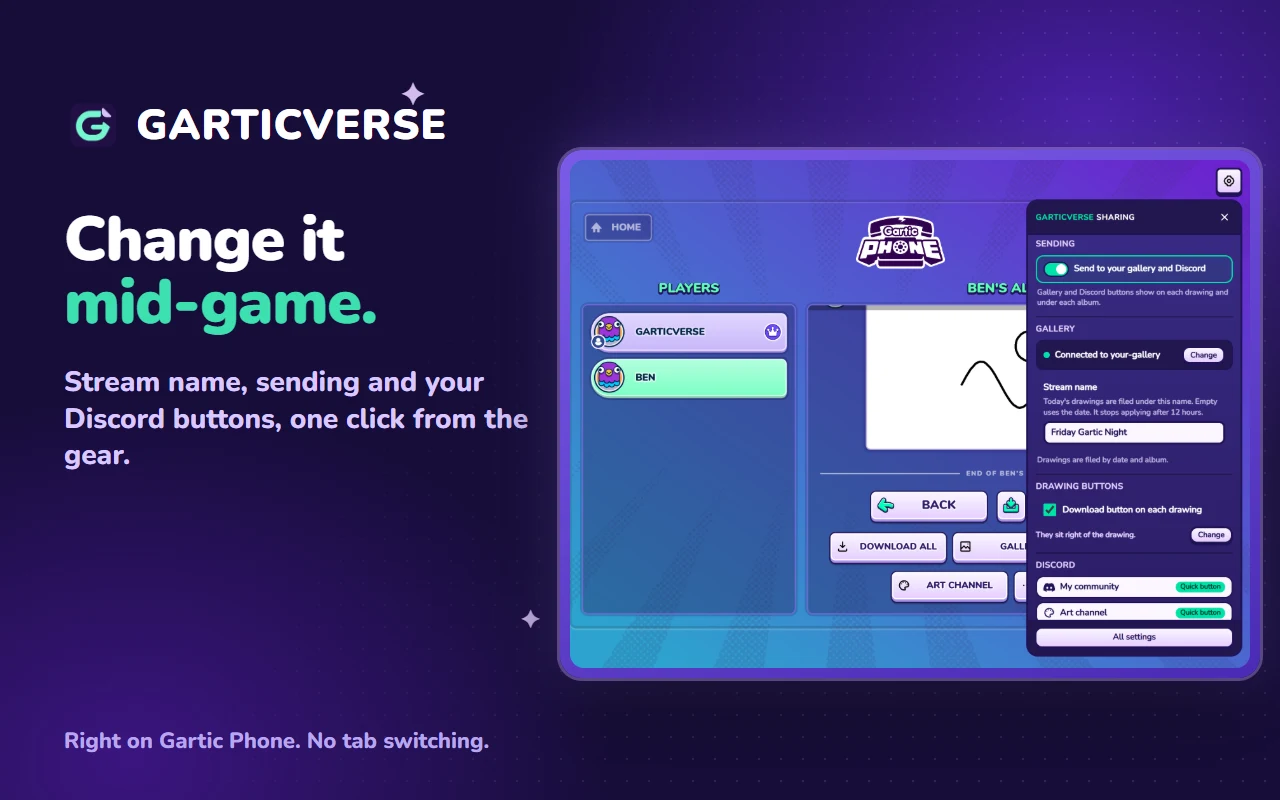
| In-game gear | Edit the look opens the look editor beside the game. Sharing and uploads shows your gallery, tonight’s stream name, the download button and your Discord buttons. |
| Alt+Shift+G | Opens or closes the look editor on any Gartic screen, including the drawing screen, where the gear is hidden. Change the shortcut at chrome://extensions/shortcuts. |
| On a drawing | Zoom, download, upload to your connected gallery, or send to a Discord quick button. Three dots open your other webhooks. Choose where they sit in All settings → Drawing buttons. |
| Under an album | Download all, Gallery and Discord destination buttons act on the drawings detected in that album. Progress and Stop appear during an operation. |
Hover over an icon to check its action or destination. Webhook URLs and your gallery's upload key are only shown on the settings page, never over the game, so they stay out of your stream.
Keep a drawing. Keep the album.
- Play through to the album reveal and let the drawings load.
- Use the Download drawing icon above a drawing to save it as a PNG.
- To save the current album's drawings, choose Download all under it. The extension saves separate PNG files, numbered in order and named with the detected artist.
If Chrome asks to allow multiple downloads for Gartic Phone, allow them so the album can finish. Keep the page open and watch the progress. An album action covers the current detected album, so open each book you want to save.
Prefer fewer buttons? Untick Download button in All settings → Drawing buttons, or in Sharing and uploads in the game. Turn it back on to restore the extension's single and album download controls.
Send straight to your Discord.
Create a destination
- In Discord, open your server's Server Settings → Integrations and create a webhook. Choose the channel where the drawings should appear and copy its webhook URL. If you cannot manage webhooks, ask a server administrator.
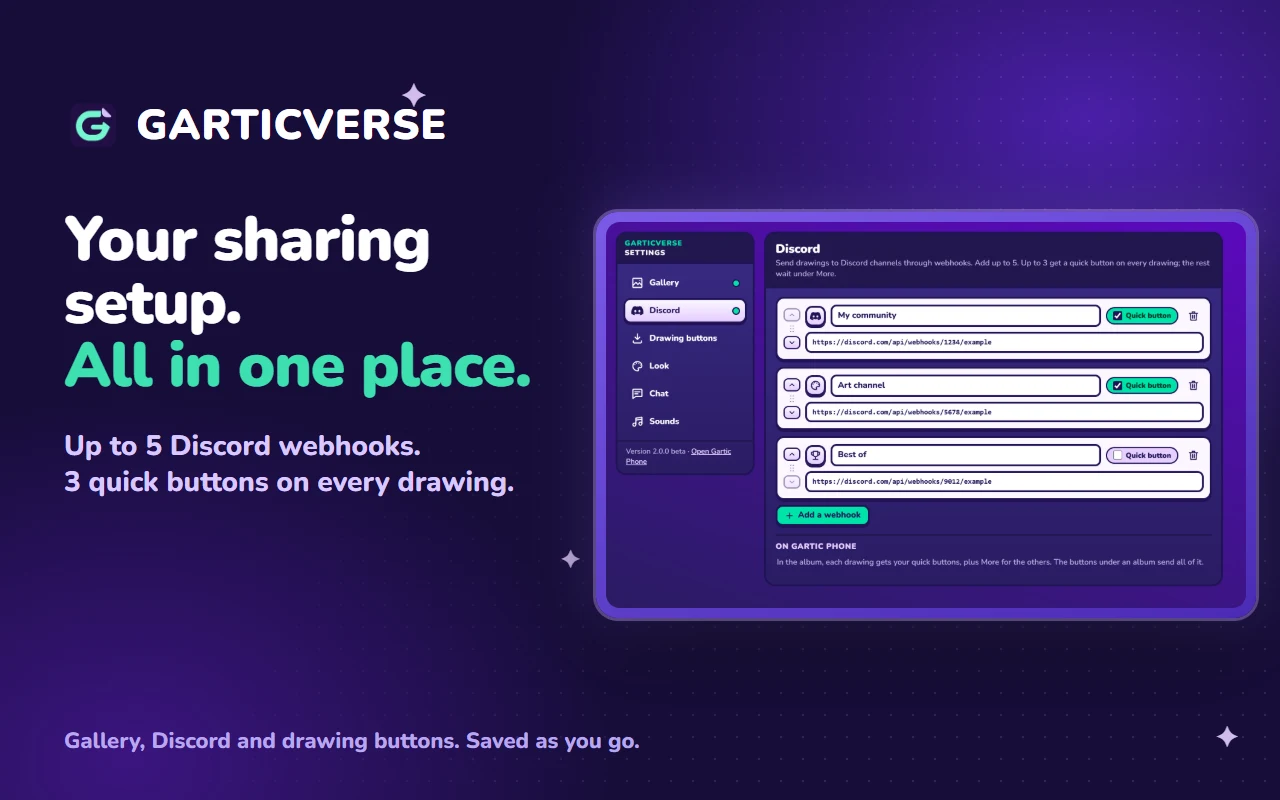
- Open All settings → Discord (from the toolbar button, or Sharing and uploads → Add a webhook in the game) and choose Add a webhook. Paste the complete URL and give it a clear name, such as Stream drawings.
- Select its icon to choose another symbol. New destinations use the Discord icon by default. Tick Quick button for a one-click button on every drawing.
- That's it: it saves as you type. Use that destination's icon on a drawing, or its named button under the album, to send.
See Discord's webhook walkthrough for the server-side setup.
| Control | How to use it |
|---|---|
| Up to 5 webhooks | Keep several channels or communities ready. Each has its own URL, label and icon. |
| Up to 3 quick buttons | Quick buttons appear on every drawing. The others wait under More (three dots). |
| Reorder | Use the arrows on a row, or drag it by its handle. |
| Rename or change icon | Edit the name or choose a symbol. These identify the destination inside the extension. |
| Remove | Use the row’s trash button; Undo brings it back for a few seconds. This removes it from the extension; it does not delete the webhook in Discord. |
Drawings are posted with the detected artist information. Check the destination before sending a whole album. Album sends run one at a time and can pause while Discord rate limits requests.
Your drawings. Your own gallery.
Gallery uploads are for the owner of a Garticverse gallery. Sign in with the Twitch account that owns your corner. Each connection is tied to its own gallery.
- Find your corner on Garticverse, open its Admin page, and find Upload from the extension.
- Choose Turn on extension uploads, then Create upload key. If a site administrator has blocked uploads, they must unblock them first.
- Click Copy extension connection while the new key is visible. A key is only shown when it is created.
- Click the extension in Chrome's toolbar and choose All settings → Gallery (in the game, Sharing and uploads → Connect opens the same place). Paste into Connection text and choose Connect with this.
- Chrome asks whether Garticverse may reach your gallery's website; allow it. Wait for Connected, then answer the two filing questions: whether to name each stream, and whether to name each game's mode. Change them any time there or in Sharing and uploads on Gartic Phone, which also reminds you if they were never answered.
- Return to the reveal. Use the gallery icon above one drawing or Gallery under an album. Open your gallery to check the result.
Manual connection & stream names
If copying is unavailable, enter the website address, your gallery slug and the upload key into the fields under or type it in. The slug is the part after /s/ in your gallery address. Click Connect gallery to verify and save them.
Set a Stream name such as Friday Gartic Night to organize your uploads. Leave it blank to use the date. It saves as you type and stops applying 12 hours later, so last week's name never swallows tonight's drawings. You can also change it in Sharing and uploads in the game, or in the lobby when Garticverse asks. The extension sends the detected artist name with each drawing; check credits in your gallery if a player used an unexpected name.
Manage access later
| Action | What happens |
|---|---|
| Disconnect | In All settings → Gallery. Removes the saved gallery connection from this browser. The website key remains valid elsewhere. |
| Replace key | Creates a new key and invalidates the old one. Copy it now and reconnect every browser that should upload. |
| Revoke key | Invalidates the key for every browser using it. Create a new key when you want to reconnect. |
| Turn off uploads | Disables extension uploads and revokes the key. If a site administrator turns them off, the gallery is also blocked until an administrator enables it again. |
One album. One destination. One click.
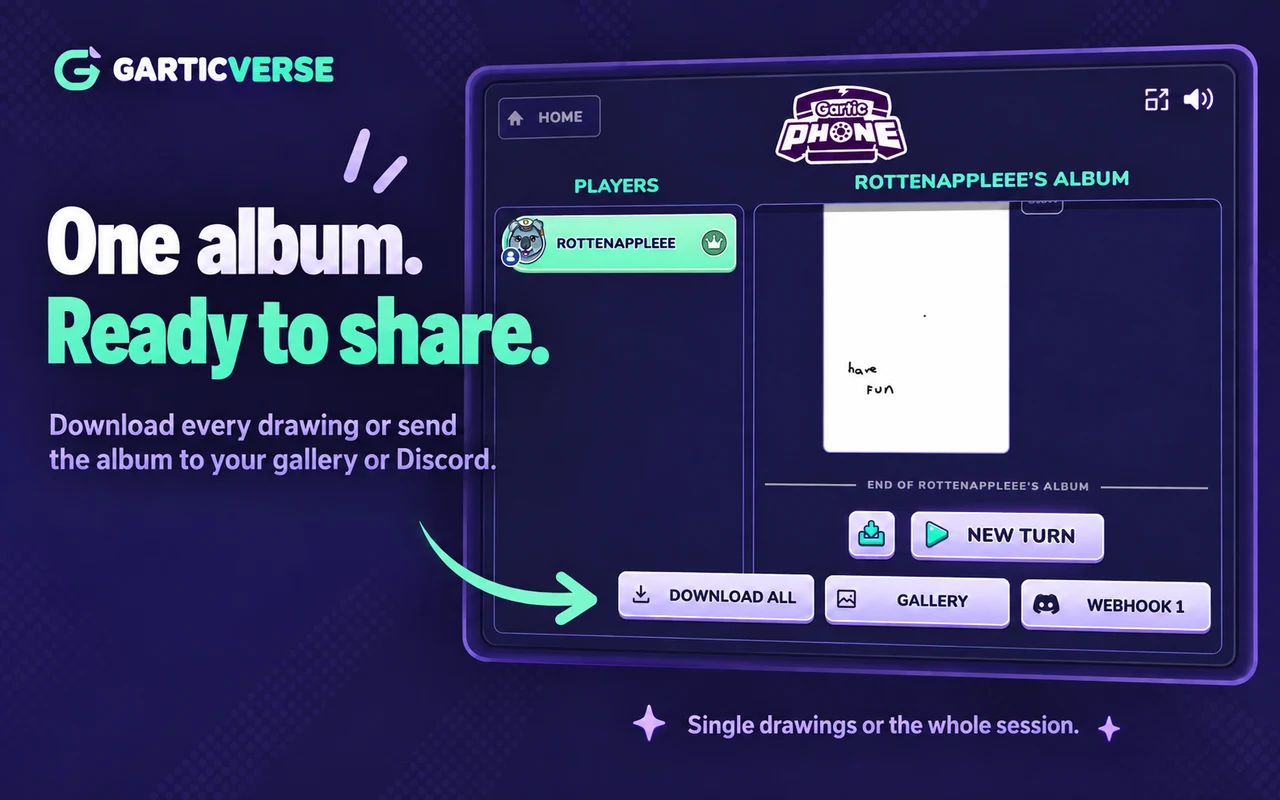
- Open the album you want and wait for its drawings to render.
- Choose Download all, Gallery, a pinned Discord destination, or a destination from More webhooks.
- Keep the tab open. Read the progress and final status, including successful, skipped, failed or possibly blank drawings.
- Use Stop to prevent later items from starting. The item already being processed may still finish.
Sending to Discord and uploading to a gallery are separate actions. Finishing one does not automatically run the other. Open the next album when you are ready to repeat.
Every part of your look, explained.
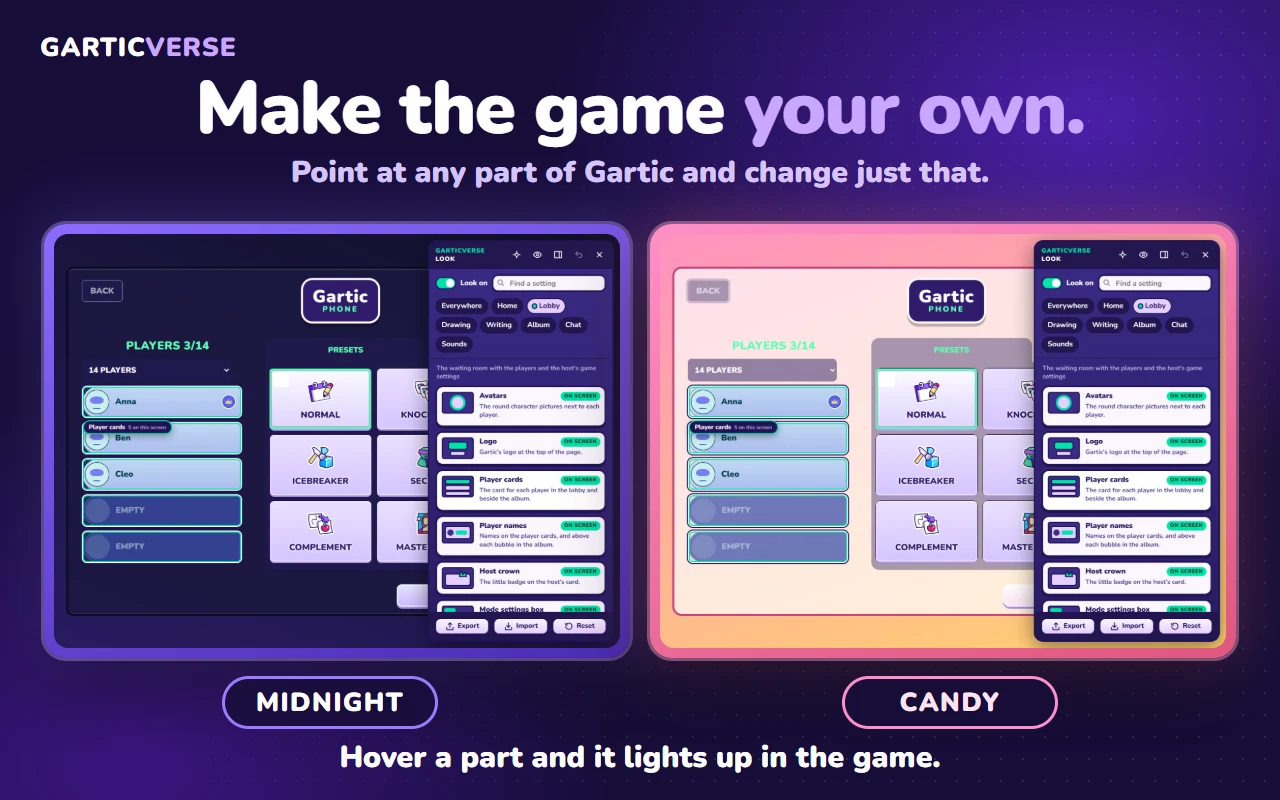
Open gear → Edit the look for a panel beside the game, or press Alt+Shift+G on any screen. Switch Look on or pick a theme. Changes save automatically and apply live in open game tabs.
Find the part you want
The editor is organised the way Gartic is. Pick a screen along the top: Everywhere, Home, Lobby, Drawing, Writing, Album, Chat or Sounds. Each part on that screen is a card that says where it is and shows a dot once you've changed it. Open a card to see only that part's settings.
- Hover a card or a single setting and Garticverse outlines exactly that thing on the page. A part that isn't on screen right now shows in a small preview instead.
- Point to edit: choose the crosshair (or press P), then click anything in the game to open its settings. Clicks never reach the game while you point.
- Find a setting searches every part, setting and option by name.
- Before and after: hold the eye button (or B) to see Gartic's own look.
- Undo: resetting a part, themes, imports and resets can all be undone for the rest of the session.
- Panel options: dock it left or right, fold it to a small tab, or Match my look so the editor wears your look's colours.
Start from a theme
Fourteen themes to start from: Gartic original, Midnight, Mint, Candy, Ink, Garticverse, Orchard, Manga ink, Spooky, Snow day, Sweetheart, Blossom, Sunset and Arcade. A theme replaces the look but keeps your logo, hidden items, chat, sounds and custom CSS.
What each screen holds
| Screen | Parts |
|---|---|
| Everywhere | Themes, Background (colour, gradient or photo), Moving background (a drift or an aurora), Floating particles, Video background, Panels, Big buttons, Text and fonts (built-in or your own font file), Custom CSS. |
| Home | Avatars, Logo, Things to hide. |
| Lobby | Player cards, Player names, Host crown, Mode settings box, Mode buttons (including your own picture for any mode), Streamer tools colours. |
| Drawing & Writing | Notebook, Timer (with an optional pulse when time is nearly up), “Done” badge, Toolbars, Colour swatches, Tools (each tool’s icon). |
| Album | Album page (and how each entry appears), Album owner’s card, Speech bubbles, Drawing buttons. |
| Chat | Twitch chat, Chat placement, Chat messages. |
| Sounds | Game sounds for the game start, each new round, time running out, the album reveal and each album page. They play even with the look switched off. |
Drawing buttons
Choose where Garticverse's buttons sit in All settings → Drawing buttons or in the editor's Album → Drawing buttons: always visible to the right of each drawing (the default) or to its left, or on the drawing only when you point at it.
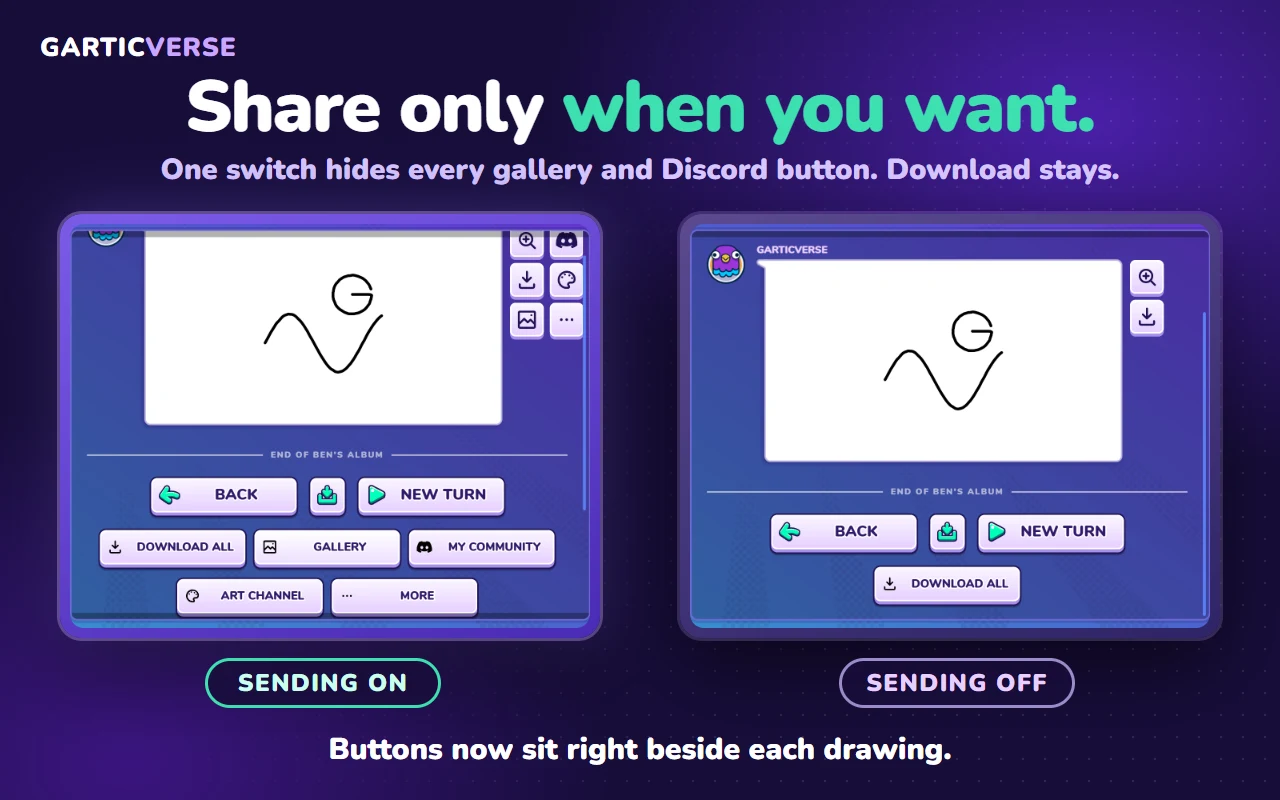
The setting saves and applies immediately, even with your look switched off. Each drawing gets one group that scrolls with the album. Side buttons match the size of Streamer tools for Gartic Phone and wrap into another column when needed. With both extensions enabled, Garticverse’s right-side buttons appear below its controls, and the duplicate PNG download button is hidden.
Your logo & a cleaner screen
In Home → Logo, keep the Gartic logo, hide it, or use your own picture. Upload one or paste its image address; uploads keep their transparency. Home → Things to hide has switches for Get the app, Tutorial, Store badges, Language button, Streamers panel and Ad slots.
Custom CSS
For changes beyond the settings, use Everywhere → Custom CSS. It is applied last, so it wins. Copy selector on any part gives you the right element to start from. If a rule makes the game hard to use, clear it or switch the look off.
Keep your chat in the picture.
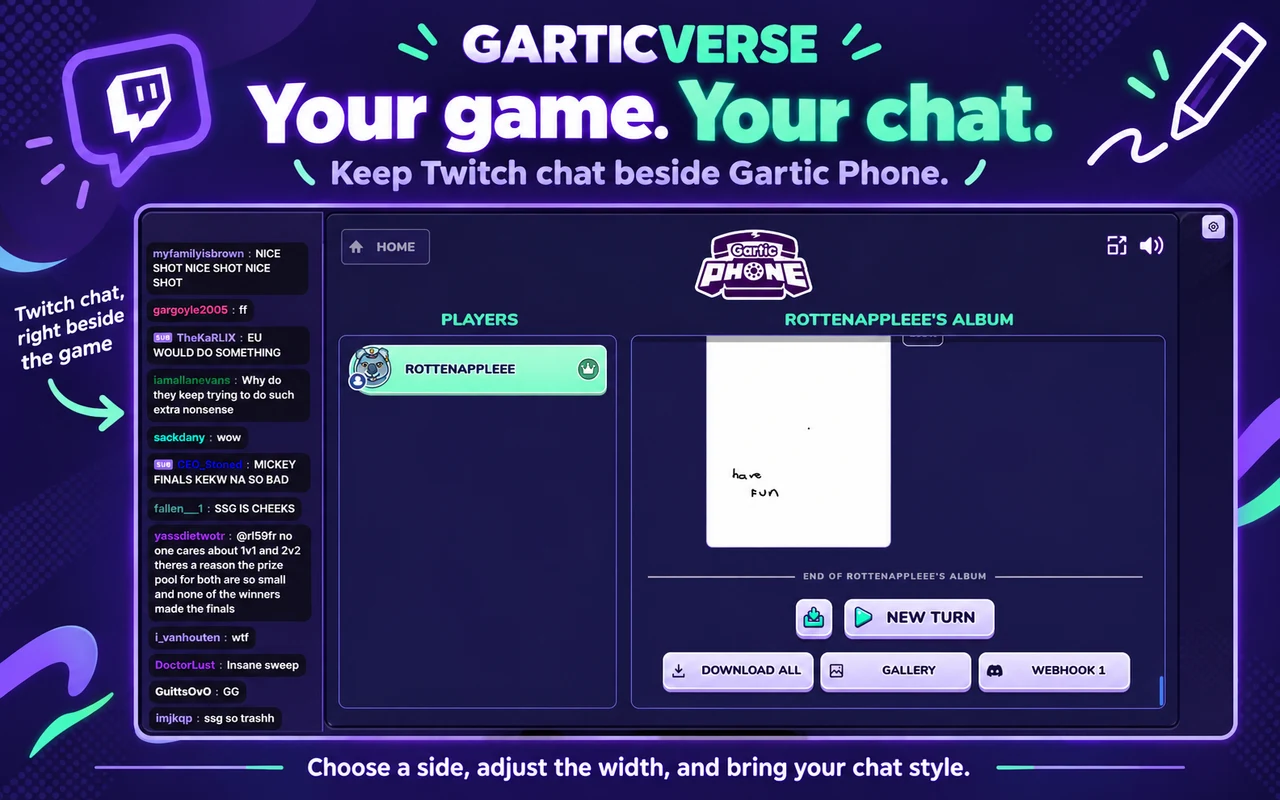
- Open the look editor on Gartic Phone and choose Chat along its top.
- Open Twitch chat and tick Show Twitch chat. Enter the channel's Twitch login, such as rottenappleee, without an @ or a full Twitch URL.
- In Chat placement, choose Left or Right, set Width from 220–520 px and Opacity from 20–100%, and pick the screens it shows on. Chat messages sets how each message looks.
- Leave Styled widget address empty for the default chat, or build a look in the Garticverse Chat Widget editor and paste the generated widget URL into this field.
A styled widget URL must use HTTPS and contain a channel, unless you supply one in the Channel field. When filled, Channel overrides the channel in the pasted URL while preserving its styling.
Chat has its own toggle and can stay visible with your look switched off. It overlays the side of the game; it does not make the game narrower. If it overlaps something you need, reduce the width, change sides or turn it off.
Keep it working, session after session.
Store version or beta?
The public release uses the existing Chrome Web Store listing. Refresh Gartic Phone after an extension update. The beta uses the separate manual download so you can test new features before they reach the store.
Update your beta installation
Download and extract the newer beta ZIP, then replace the files inside the same folder Chrome already loads. Open chrome://extensions, click Reload on Garticverse, and refresh your Gartic Phone tabs. Keeping the same installation preserves its browser-local settings. Removing and reinstalling can clear them.
Use another browser or computer
Settings are local to the browser profile. Set up webhooks, your gallery connection and your look in the other profile too. If you replace a gallery key to connect the new browser, reconnect the earlier one with the new key as well.
Turn off only what you need
| To stop… | Use… |
|---|---|
| A running album action | Stop in the album action row. Completed items stay sent or saved. |
| Appearance changes | The Look on switch, in the editor or the toolbar popup. Saved appearance settings are kept. |
| Twitch chat | Show Twitch chat, on the editor’s Chat screen. |
| Gallery and Discord sending | The Sending switch in All settings → Drawing buttons, the toolbar popup or Sharing and uploads. Off hides every gallery and Discord button and nothing is sent; zoom and download stay. |
| Gallery uploads here | Disconnect in All settings → Gallery. Use Revoke key on the website to invalidate that key everywhere. |
| The entire extension | Disable Garticverse on Chrome’s Extensions page, then refresh the game to remove existing controls and styles. |
Your webhooks, upload key, preferences and uploaded skin images are saved in this browser. Downloaded PNGs stay in your downloads. Sent drawings and Discord posts live at the destination; disconnecting the extension does not remove them. Remote image URLs and chat widgets load from their configured services.
Ready for your next stream?
Use this quick check before you go live. Skip destinations you do not use. The ticks are just for this visit.
A quick fix, without the guesswork.
Search by feature or error, or open a question below.
How do I put send buttons on the right of every canvas?
That’s where they sit by default. If yours are on the left or only show when you point at a drawing, open All settings → Drawing buttons (or, in the game, the look editor’s Album → Drawing buttons) and choose Right of each drawing. It updates immediately and works with your look switched off. Each drawing gets one group, with extra buttons wrapping into another column. The buttons match Streamer tools for Gartic Phone in size. If both extensions are enabled, Garticverse’s right-side buttons sit below its controls and the duplicate PNG download button is hidden.
How do I stop Garticverse sending anything?
Switch off Sending in All settings → Drawing buttons, in the toolbar popup, or in Sharing and uploads on Gartic Phone. Every gallery and Discord button disappears, from drawings and from under albums, the lobby stops asking for names, and the extension refuses to send. Zoom and download stay, and your gallery connection and webhooks are kept for when you switch it back on.
Why is the drawing download button missing?
If Streamer tools for Gartic Phone already shows a PNG download button beside that drawing, Garticverse hides its duplicate. Use the existing PNG button. Garticverse’s download button returns when the other one is unavailable, provided Download button is ticked in All settings → Drawing buttons.
I installed from the store. Why are features from this guide missing?
The Chrome Web Store has an older Garticverse release. This guide covers Garticverse 2.0.0. Use Download beta and the beta setup steps in the installation chapter to get the new features before they reach the store version. Disable the store extension while testing the beta, then set up the beta’s connections and preferences separately.
I cannot find the settings gear or drawing buttons.
Check that Garticverse is enabled in Chrome and has access to garticphone.com. Refresh the game after installing or updating. The gear is hidden during the drawing screen; press Alt+Shift+G there for the look editor, or open the extension from Chrome’s toolbar. Drawing actions appear on supported drawing canvases during the reveal, not on every image on the page.
The beta will not load, or Chrome says the manifest is missing.
Extract the beta ZIP first. In Load unpacked, select the folder that directly contains manifest.json, not the ZIP or its parent folder. Keep that folder on your computer. The store version does not need these manual steps. If your browser is managed by a school or workplace, its administrator may restrict unpacked extensions.
Download all only saved one file.
The extension saves separate PNG files. If Chrome asks whether Gartic Phone can download multiple files, allow it. Check the browser’s blocked-download indicator and Downloads list, then retry. A repeat download can create another copy.
A drawing looks blank, or the album count is smaller than expected.
Wait for the reveal to finish and for drawings to render, then open the album you want. Album actions use the drawings currently detected in that album; they do not recover hidden or unopened books. A ‘looked blank’ message is a warning rather than proof of failure: the extension still attempts the drawing. Check the saved or posted image.
My fourth or fifth Discord destination has disappeared.
Only three webhooks can be quick buttons. Use More (the three-dot button) for the others. Check each destination’s URL and name in All settings → Discord.
Discord says Send failed or rate limited.
Check that the saved URL is the complete webhook URL for your intended channel and that the webhook still exists. A server administrator can check its channel and permissions. Album sends wait and retry when Discord rate-limits them; keep the tab open and watch the status. If the webhook was deleted, create a new one and save its URL.
The website says This gallery belongs to another streamer.
Sign in with the Twitch account that owns that gallery and open its Admin page. You can manage your own gallery’s connection. If the gallery was assigned to a different account or the wrong owner, ask a site administrator to correct the ownership.
Extension uploads are blocked, or I cannot turn them on.
A gallery owner can normally choose Turn on extension uploads. If a site administrator has blocked uploads for that gallery, only a site administrator can unblock them. This is separate from the gallery’s regular visitor-upload setting.
The gallery key is invalid, revoked, or no longer works.
Check the website address and gallery slug, then create or replace the key on your gallery’s Admin page. Copy the new connection text, paste it in All settings → Gallery and choose Connect with this. Replacing or revoking a key invalidates the old one in every connected browser. Disabled uploads or a change in gallery ownership can also invalidate access.
I closed the page before copying my upload key.
The website only shows a newly created key once. Use Replace key to create another, then copy it immediately. Reconnect every extension that used the previous key.
My settings or look changes did not stick.
Everything saves as you change it; the Saved chip on the settings page confirms it. A gallery connection is saved once Connect gallery (or Connect with this) succeeds. For appearance changes, make sure Look on is switched on, or pick a theme. Settings belong to this browser profile and do not automatically sync to other computers.
My background or logo will not appear.
For a background, pick a photo in Everywhere → Background; for a logo, use your own picture in Home → Logo. Choose an image file or paste a direct image address. Look on must be switched on. Try a smaller image if processing fails, check that a remote address loads, and use Clear to remove the current image. Uploaded logos preserve transparency.
Twitch chat is empty, wrong, or covering the game.
On the editor’s Chat screen, tick Show Twitch chat, enter the Twitch login without @ or a full Twitch URL, and wait for new messages. The widget does not load old chat history. If a styled widget URL is present, it must use HTTPS; a filled Channel field overrides its channel. Clear that URL to try the default widget. Change Side or reduce Width in Chat placement if chat covers game controls; it overlays the page rather than shrinking the game.
Gartic original did not undo everything.
The Gartic original theme resets the look but keeps your logo, hidden items, chat, sounds and custom CSS. Use Reset → Start over to clear everything, with the look switched off; Reset also has the look, chat and sounds on their own. Every reset can be undone for the rest of the session. Look on only pauses appearance changes; Twitch chat has its own toggle.
Can I resume an album or undo a send?
Keep the same game page open and run the same destination again: successfully sent drawings are skipped for that destination, and failed or unprocessed drawings can be tried again. This is temporary page memory, not permanent duplicate protection; refreshing may send another copy. Stop prevents later items, but an in-flight item may finish. It does not delete drawings or messages already sent.
Will everyone in the game see my skin or chat?
These are local browser changes. Other players do not get your look or chat settings. Viewers see them only if your stream captures the area where they appear, which includes the look editor while it is open. No gallery connection is needed for your look, chat, downloads or Discord sharing.
All set. Make something worth keeping.
Keep this guide handy, open the game, and give your next Gartic session a home.