Free stream assets · Streamer.bot
Song Requests
Your chat picks the music.
Your Spotify plays it.
Nobody hogs the queue.
Viewers type !sr and their song plays next in your own Spotify app, and YouTube links play on a YouTube player. Fair queue, real refunds, a drag-and-drop control window, an OBS dock and a now-playing overlay. Built for the Rotten Apple stream, free for yours.
Version 1.9.0 · Streamer.bot 1.0+ · Windows · Spotify Premium
What it does
From chat to speakers in one command
- 1Chat asksA viewer types !sr with a song name, a Spotify link or a YouTube link.
- 2Streamer.bot checksLength, cooldown, per-viewer limit, duplicates. It takes their apples and replies with their spot.
- 3Queue plays fairEveryone's first song goes before anyone's second. You can drag, skip or remove anything.
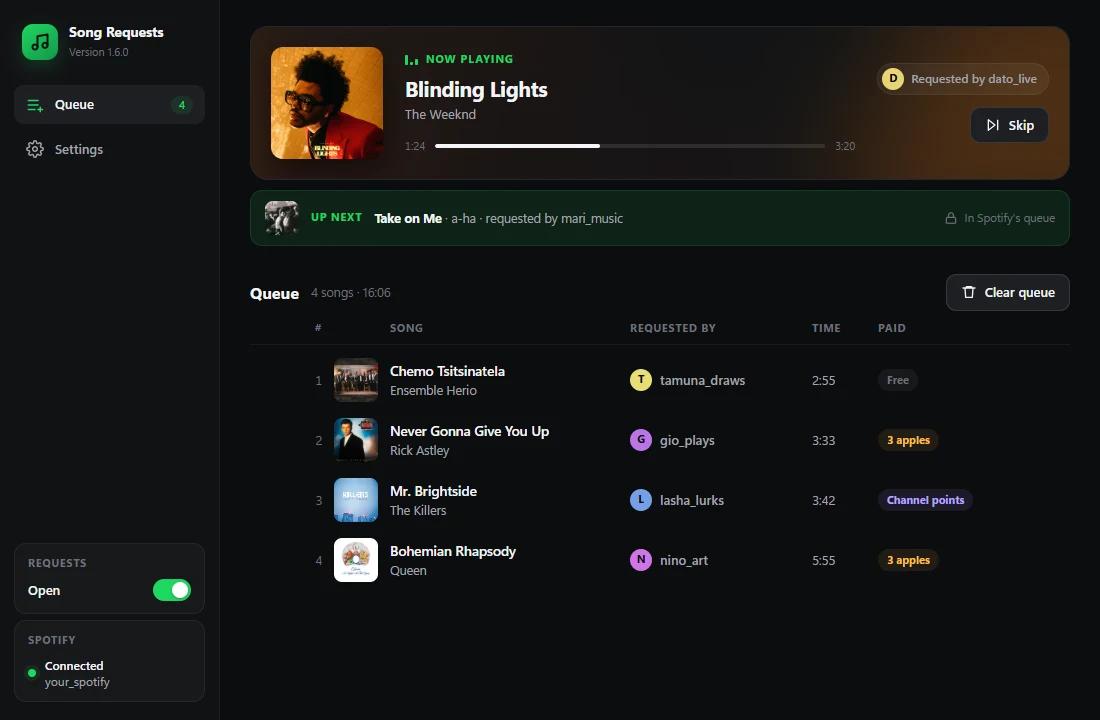
- 4Spotify plays itAbout 30 seconds before your current song ends, the next request goes to your Spotify. No gap. A YouTube link plays on the YouTube player instead: Spotify pauses for it and carries on after.
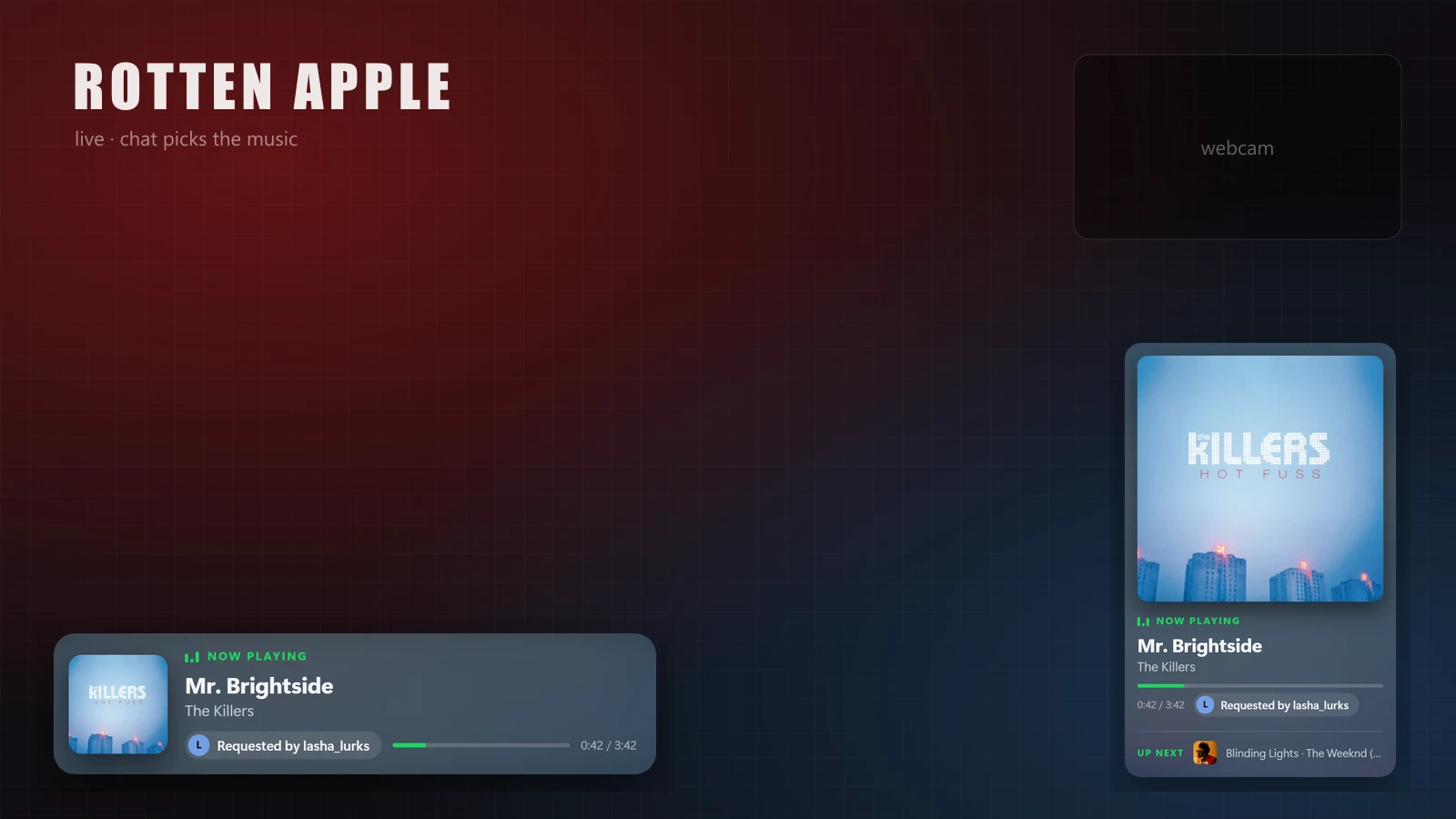
- 5Stream sees itThe overlay slides in with the album art and who asked for it.
tamuna_draws: !sr chemo tsitsinatela
botRottenAppleee: @tamuna_draws added Chemo Tsitsinatela by Ensemble Herio (#1 in queue)
gio_plays: !sr https://youtu.be/dQw4w9WgXcQ
botRottenAppleee: @gio_plays added Never Gonna Give You Up by Rick Astley (#2 in queue)
nino_art: !sr https://youtu.be/… (a song that's only on YouTube)
botRottenAppleee: @nino_art added Tbilisuri Remix by DJ Kakha (#3 in queue)
gio_plays: !wrongsong
botRottenAppleee: @gio_plays removed Never Gonna Give You Up and refunded 3 apples.
botRottenAppleee: Now playing: Chemo Tsitsinatela by Ensemble Herio (requested by tamuna_draws)
lasha_lurks: !song
botRottenAppleee: Now playing: Chemo Tsitsinatela by Ensemble Herio (requested by tamuna_draws) open.spotify.com/track/…
Why it's cool
Song requests that don't wreck your stream
Fair by design
Round-robin queue: one viewer can't flood it with ten songs while everyone else waits.
Refunds that work
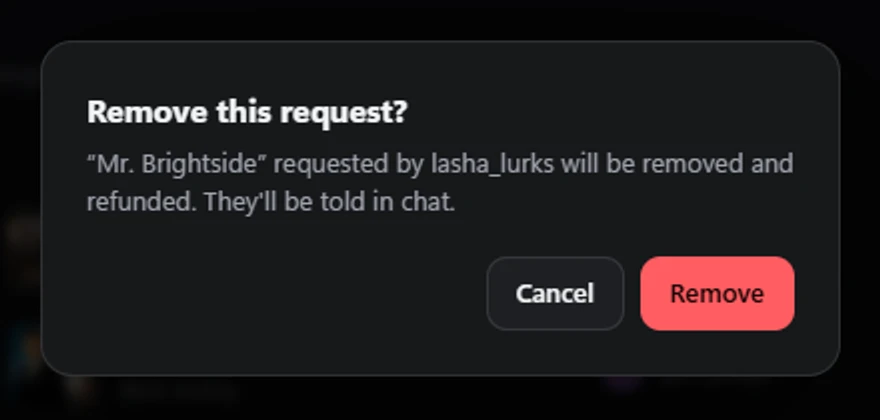
!wrongsong, removing a song, clearing the queue, or skipping a request before halfway gives the apples or channel points back, automatically.
Real Spotify playback
Songs play in your own Spotify app at full quality. Your playlist fills the gaps, and paused means paused.
Drag-and-drop control
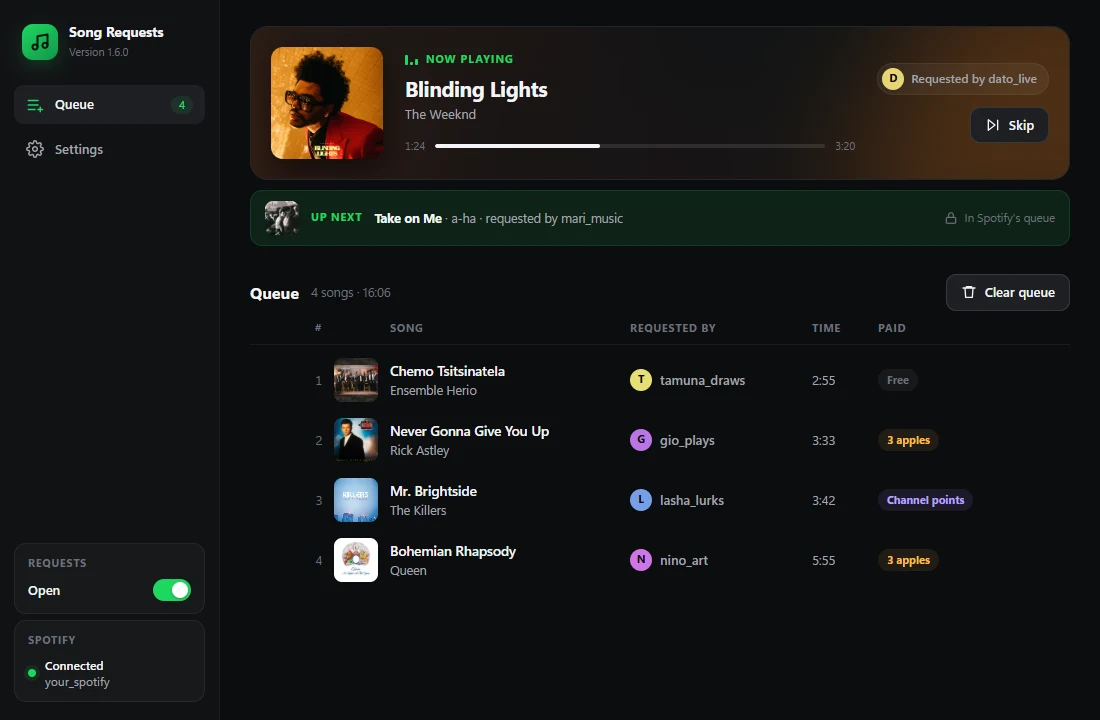
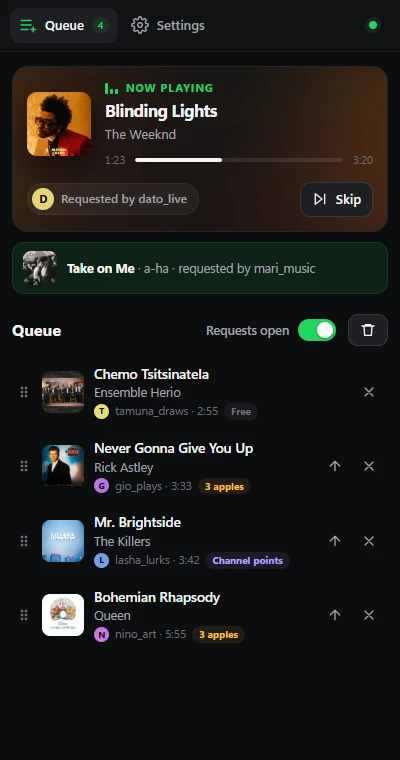
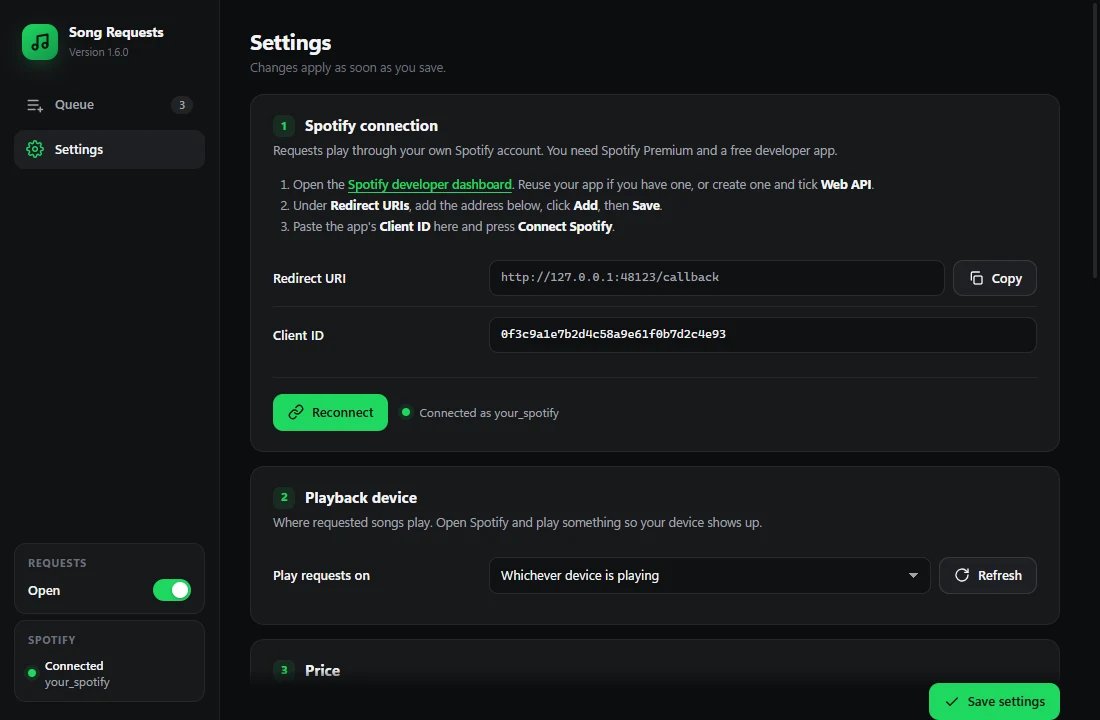
A control window with album art, a live progress bar, play next, remove and skip. Also as an OBS dock, so you never leave OBS.
YouTube too
A YouTube link plays the video's sound, even songs Spotify doesn't have. Spotify pauses for it and carries on after.
On-stream overlay
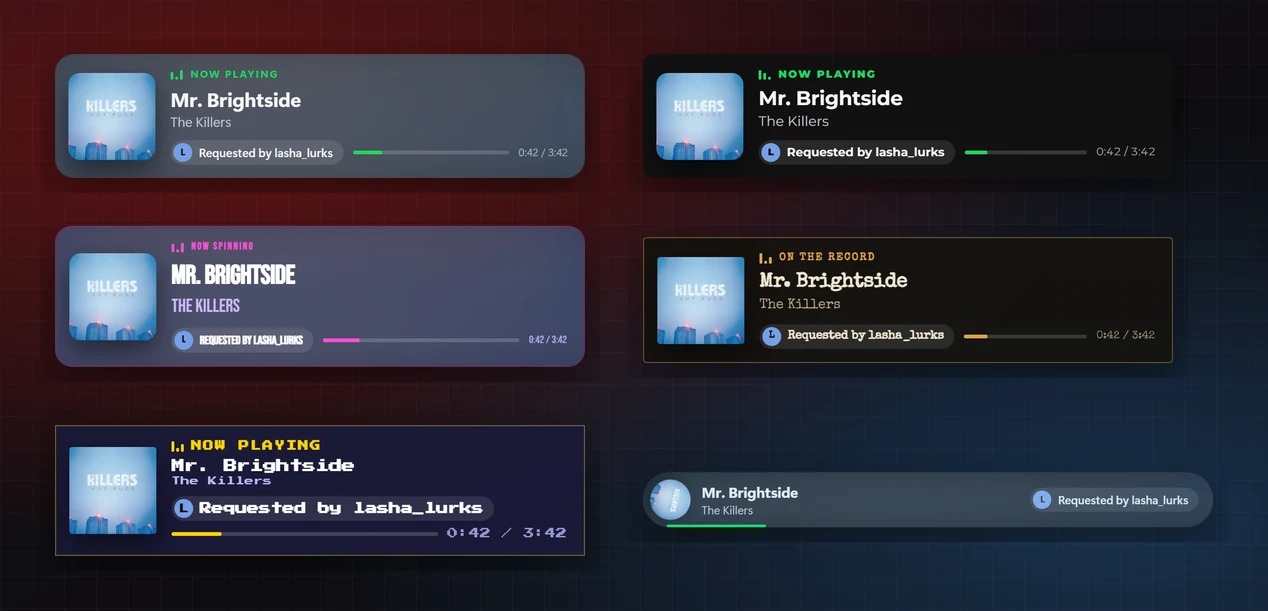
Now-playing card with eight styles and a full editor: fonts, colours, layouts, animations.
Runs on your economy
Charge apples or any points variable, or channel points. Subscribers and VIPs can pay less or queue more, or have requests to themselves.
Your words
Every line the bot says is yours to reword or switch off, with {placeholders}. Reply under the viewer's message or @ them.
Keeps chat in check
Ban songs and artists, block explicit tracks, and stop the same song coming back within the hour. Mods ban what's playing with !srban.
Chat has a say
!voteskip skips a song once enough viewers vote, and !wheresmysong tells a viewer their place and the rough wait.
A playlist of it all
Every request that plays lands in a private playlist in your Spotify, so the good ones aren't lost after stream.
Free, no server
It runs inside Streamer.bot. Your Spotify login never leaves your PC, and nothing to subscribe to.
See it
What you and your chat get
Try it
Play with it right here
The real panel and overlay running on example songs. Drag a song, remove one, flip to Settings. Nothing here reaches anyone's Streamer.bot.
Set it up
Five minutes, once
You need Streamer.bot 1.0 or newer on Windows, Spotify Premium, and the Spotify app. Everything runs on your own PC.
Import into Streamer.bot
In Streamer.bot, click Import, paste it and click Import. You get four actions (Spotify SR - Commands, Tick, Settings, Panel), ten commands and a timer. Streamer.bot switches imported timers off; the bot turns its Spotify SR Tick timer back on the first time you use it. If a command like !sr already exists, disable your old song request action so both don't answer.
Want to read the code first? The C# source is here, or download the import as a .txt.
Connect your Spotify
- Type !srsettings in your own chat. The Song Requests window opens on your PC.
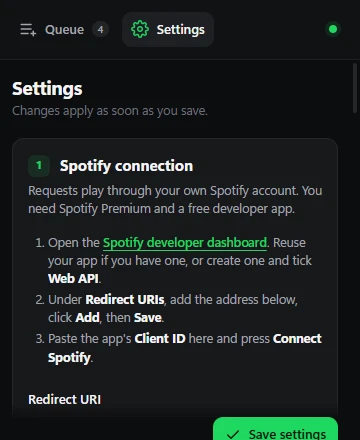
- Open the Spotify developer dashboard. Reuse your app if you have one (Spotify allows one), or create one and tick Web API.
- Under Redirect URIs add
http://127.0.0.1:48123/callback, click Add, then Save. - Paste the app's Client ID into the window, press Connect Spotify and approve it in the browser.
- Play something in Spotify, press Refresh, pick your device and Save.
It signs in with PKCE, so it never needs your app's Client Secret.
Set the price and limits
| Setting | What it does |
|---|---|
| Cost | What !sr costs. 0 is free. |
| Currency variable | The persisted Twitch user variable your points live in (apple_points on Rotten Apple). |
| Cooldown | Seconds a viewer waits between requests. |
| Max length | Longer songs are turned down. |
| Max per viewer | How many songs one viewer can have waiting. |
| Free users | Names that never pay. You never pay either. |
| Who can request | Everyone, subscribers and VIPs, or mods only. Subs and VIPs can have their own price and songs-waiting limit. |
| Moderation | Banned songs and artists, explicit songs off, no repeats within so many minutes, votes needed for !voteskip, and refunds for requests you skip early (before 50% by default). |
| Request playlist | Adds every Spotify request that plays to a private playlist. Connections made before 1.8 need one Reconnect to allow it. |
| Chat messages | Reword or switch off anything the bot says, and pick @mentions or replies in a thread. |
Prefer channel points? Create the reward in Streamer.bot (so it can refund it), tick user input, and add it as a Reward Redemption trigger on Spotify SR - Commands.
Add the OBS dock
In Streamer.bot open Servers/Clients → WebSocket Server, tick Auto Start and press Start Server. Then copy your dock link and add it in OBS under Docks → Custom Browser Docks.
https://byttenapple.com/assets/song-requests/dockCheck my setup
Run this on the PC where Streamer.bot runs. It only talks to that PC.
- ·Streamer.bot WebSocket server
- ·Song Requests installed
- ·Spotify connected
Add the YouTube player
So YouTube links play, also songs Spotify doesn't have. In the Song Requests window open Setup → YouTube and copy the player link (it carries your WebSocket port and password), or use https://byttenapple.com/assets/song-requests/youtube if you kept the defaults.
- In OBS, add a Browser source to your main scene with that link, at 300 × 100. Nothing shows on stream.
- Untick Shutdown source when not visible and leave Control audio via OBS unticked: it then plays through your desktop audio, like Spotify, in every scene.
- When a YouTube request's turn comes, Spotify pauses at the end of its song, the video's sound plays, and Spotify carries on after.
YouTube sometimes refuses to play videos for players that aren't signed in ("confirm you're not a bot"). If that keeps happening, open the same link in your normal browser where you're signed in to YouTube, click Allow sound once and keep the tab open, instead of the OBS source. Refused videos are always refunded. Don't want YouTube at all? Set YouTube links to Only if the song is on Spotify: a link then only plays when that exact song is on Spotify, otherwise the viewer is told and refunded.
Put the song on stream
Open the Now Playing editor, pick a style, copy the link and add it in OBS as a Browser source (leave Local file unticked) at the size the editor shows.
Happy with the default? Use https://byttenapple.com/assets/song-requests/overlay at 592 × 162.
Commands
What chat can type
| Command | Who | What it does |
|---|---|---|
| !sr <song> | Everyone | Request by name, Spotify link or YouTube link (YouTube links play on the YouTube player). |
| !song | Everyone | What's playing, who asked for it, and a Spotify or YouTube link. |
| !queue | Everyone | The next five songs. |
| !wrongsong | Everyone | Pull your latest request and get refunded. |
| !skip | Mods | Skip the current song. If requests are waiting, the next one plays straight away. A request skipped before halfway is refunded. |
| !srclear | Mods | Empty the queue and refund everyone. |
| !srreset | Mods | Something stuck? Stop waiting for the song handed to Spotify. The queue stays. |
| !sron / !sroff | Mods | Open or close requests. |
| !voteskip | Everyone | Vote to skip the song playing (when it's on under Moderation). The song's requester skips it with one vote. |
| !wheresmysong | Everyone | Your next song's place in line and roughly how long until it plays. |
| !srban | Mods | Ban the song playing from requests and skip it. Unban it under Moderation. |
| !srsettings | You | Open the control window. |
Under the hood: it checks what Spotify is playing every 5 to 10 seconds while music plays (less often when nothing does, to stay inside Spotify's limits). When the current song has about 30 seconds left, it hands over the next request. Only one request sits in Spotify at a time, so the rest can still be moved, removed and refunded. If a request still misses its turn (a network blip, say) and Spotify starts a song of its own, the bot skips that song within its first few seconds so the request plays next. If you skip inside Spotify itself, the next request goes to Spotify straight away and plays after the song Spotify started (skip again to get to it). Songs you queued in Spotify yourself, or picked by hand, are never skipped. It never starts music by itself, with one exception: a YouTube request plays straight away when Spotify has nothing on at all (paused Spotify still holds it).
Help
Quick fixes
›Spotify says “redirect_uri: Not matching configuration”.
The redirect URI saved in your Spotify app doesn't match http://127.0.0.1:48123/callback exactly. Open your app on the Spotify dashboard → Settings → Edit, paste the address, click Add so it appears as its own line, then scroll down and click Save. Watch for a trailing slash, https, localhost or a different port. Changes can take a minute or two to apply.
›Isn’t localhost blocked by Spotify?
The word localhost is blocked, but loopback IP addresses are allowed over plain http. That's why it uses 127.0.0.1.
›Do I need Spotify Premium?
Yes. Spotify only lets Premium accounts be controlled through its API. Your viewers don't need anything.
›Can I reuse a Spotify developer app I already have?
Yes, and you should: Spotify allows one development app per account. Add the redirect URI to it and use its Client ID. Its 5-user limit doesn't matter, because you are the only user.
›The bot says “song requests aren’t set up yet”.
Spotify isn't connected. Type !srsettings in your chat, open Setup and press Connect Spotify.
›A request was added but never played.
Requests go to Spotify about 30 seconds before the current song ends, and only while Spotify is playing. If Spotify is paused or has nothing loaded, the queue waits. Start any song and the requests follow it.
›Spotify played its own songs instead of the requests.
Update to 1.6.2 or newer. The usual cause: a song asked for by name or YouTube link matched a version that can’t play in your country. Spotify then skipped it without a word, or played your country’s version under a different ID, and older versions kept waiting for it for up to 20 minutes while Spotify carried on with its own music. Now the bot picks a version that plays where you are, recognises your country’s version when Spotify swaps it in, and if Spotify still drops a request, it refunds the viewer, says so in chat and moves on to the next request straight away. Requests also go to Spotify about 30 seconds before the song ends (it used to be 12), and if one still misses its turn, the bot skips Spotify’s song within its first few seconds. Songs you queued in Spotify yourself are never skipped.
›Skip played a random song instead of the next request.
Update to 1.6.4 or newer. Older versions only skipped, so Spotify played whatever it had lined up next. Now Skip (the button or !skip) first hands the next request to Spotify, waits until Spotify lists it, and then skips, so the request plays straight away. A song you queued in Spotify yourself still plays first. Skipping inside the Spotify app works a little differently: the bot can't see the button, only that the song changed early, so from 1.6.5 it hands the next request over right then and it plays after the song Spotify started. Skip once more and you're on it.
›How do I change what the bot says?
The Chat section of the window lists everything it says in chat. Reword any line (the words in {braces} are filled in for you), switch one off, or press Reset for the original. You can also have it reply under the viewer’s message instead of starting with @their name. Needs 1.8 or newer.
›The request playlist says to reconnect.
Connections made before 1.8 weren’t allowed to change playlists. Open Setup → Spotify connection, press Reconnect and approve it once; from then on every Spotify request that plays is added (YouTube videos aren’t on Spotify, so they’re not).
›Do viewers get their points back when I skip their song?
Yes, when you or a mod skip it before it played half of itself (change the share, or switch it off with 0, under Moderation → Refund early skips). That counts !skip, the Skip button, skipping or picking another song in Spotify itself, and pressing play in Spotify during a YouTube request. !voteskip and !srban don’t refund. Channel point redemptions are completed once the song has played, so they can still be refunded until then. Needs 1.9 or newer.
›A song keeps getting requested again and again.
Moderation → No repeats for: a request that played can’t be asked for again for that many minutes. Mods can also ban it for good with !srban while it plays, or with the ban button on a request.
›A YouTube request was refused: “can’t be played on stream”.
YouTube wouldn’t play that video in the player: either its owner blocks playing it on other sites, or YouTube wants a signed-in player (“confirm you’re not a bot”). The viewer is refunded either way. If it happens to most videos, open the YouTube player link in your normal browser where you’re signed in to YouTube instead of OBS: click Allow sound once and keep that tab open.
›YouTube requests just wait in the queue.
The YouTube player isn’t open, or Spotify is paused. The window and dock show a red bar when the player is missing: add it in OBS from Setup → YouTube. A paused Spotify holds every request, YouTube ones too; press play in Spotify or Skip.
›I don’t want YouTube on stream.
Setup → YouTube → YouTube links → Only if the song is on Spotify. A YouTube link then only plays when that exact song (same title and artist) is on Spotify. Anything else is refused and refunded, never swapped for some other song.
›Requests and the now-playing overlay stop for hours, and Streamer.bot's log says 429.
Update to 1.6.7. Spotify caps how many calls a developer app may make, and every app on your Spotify developer account shares that cap. Older versions asked Spotify what's playing every 5 seconds around the clock, plus every 3 seconds while the window was open, and kept asking after Spotify said stop, so the cap ran out and Spotify blocked the app for hours. 1.6.7 asks half as often while music plays and far less when nothing does, waits as long as Spotify says, and the window and OBS dock show until when.
›Podcasts don't show as now playing.
Update to 1.6.7. Spotify only reports a podcast episode when asked for one; 1.6.7 asks, so !song, the window and the now-playing overlay show the episode and its show.
›Requests only play when I skip, and Up next stays after they played.
Update to 1.6.6 or newer. Streamer.bot switches timers off when you import, and the Spotify SR Tick timer is what hands each request to Spotify near the end of a song and notices when it starts. Without it, requests only moved on a skip and stayed in Up next after they played. 1.6.6 switches the timer back on by itself, and the window and OBS dock show a red bar if it still isn't running. On an older version, open Streamer.bot → Settings → Timed Actions and tick Spotify SR Tick.
›A request shows as up next, but it already played (or it's stuck).
Update to 1.6.5 or newer, and check the timer above. Older versions could keep waiting for a request that had already played when Spotify was playing a long playlist, even after a restart, and the next requests waited with it. Now the bot notices within a song. If anything ever looks stuck, press Stuck? next to the song in the window or the OBS dock, or type !srreset in chat. It stops waiting for that song and keeps the rest of the queue.
›The bot says a song “isn’t playable in this region”.
No version of that song can play in your Spotify account’s country, so the bot didn’t take it (and didn’t charge for it). Ask for another version, or send a Spotify link to one that plays for you.
›The bot says “Spotify isn’t playing on any device”.
Open the Spotify app and press play once so it becomes the active device. In Setup → Playback device, press Refresh and pick your PC.
›A YouTube link found the wrong song.
YouTube links are matched by the video title on Spotify, which works for official videos but can miss covers, remixes and live versions. A Spotify link or the song name with the artist is more exact.
›Can viewers pay with channel points instead?
Yes. Create the reward in Streamer.bot under Platforms → Twitch → Channel Point Rewards (so Streamer.bot can refund it), tick user input, and add a Reward Redemption trigger for it to the Spotify SR - Commands action.
›The OBS dock or overlay can't reach Streamer.bot.
Start Streamer.bot's WebSocket server under Servers/Clients → WebSocket Server and tick Auto Start. If you changed its port or set a password, build a new link with them here. Use Check my setup on the streaming PC to see which step fails.
›The OBS dock or my browser sources are blank or white.
That's OBS's browser engine failing to start, usually because a second copy of OBS is still running in the background. Close every OBS window (check the tray too), wait a few seconds, and open OBS once.
›How do I update to a newer version?
Import the new string the same way. It replaces the existing Song Requests actions and keeps your Spotify connection, settings and queue. The dock and overlay update by themselves.
Want a custom one?
Something built around your branding, or a widget that is not here yet.
Contact me on Twitch